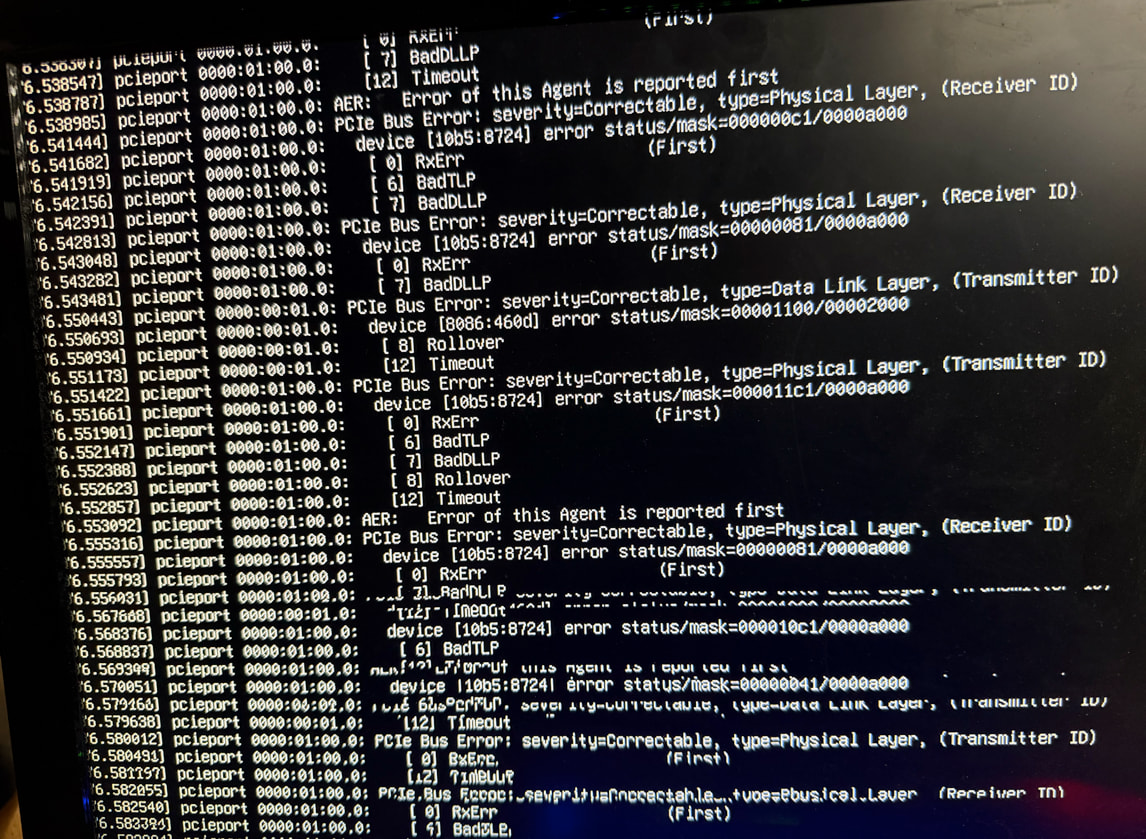
If your goal is to use this with TrueNAS you will need to flash it to IT mode anyway. I don’t think that is related to the errors, the errors are at the physical PCIe layer level.
If I had known ordering a third card was on the table so soon, I would have suggested a 9305 instead of a 9300. The 9305 has a single SAS controller (vs two on the 9300) so is more power and heat efficient. Now, I run a couple of 9300-16is in my 45HL boxes and don’t have any issues, don’t have fans strapped to them and just use case airflow. So it’s not like cooling a server GPU, but just something to be aware of when having issues.
Not to be too much of a downer on the second hand market, but it is also worth noting that there are fake cards in the supply chain, that have undersize heat sinks. AoS charges a bit more, but will make sure you get a clean, flashed, tested card and not a fake.
.I believe that connection is for if the PCIe slot isn’t providing enough power. We haven’t asked about your PSU, but I assume it is something decent, not a 250W SFF unit or something. Normally a PCIe slot should power the card just fine.
AFAIK there’s no standard hole positioning for the heat sinks. I’m not aware of anything third party. I wouldn’t mess with that.
I’m a bit out of my area of direct knowledge, but if that temporarily fixes the issue, I think it indicates the card itself (BGA Solder, SAS chip silicon) is fine. Here is what you can try in that scenario, but it is mostly cut/paste. If you can tell us the specific mobo maybe we can help with the BIOS settings, I wasn’t sure from your post what specific brand and model of B760M.
1. The BIOS Fix: Disable ASPM and Force Gen 3
The most common root cause of these correctable AER floods is an incompatibility with ASPM (Active State Power Management). ASPM is designed to save power by putting idle PCIe links to sleep. However, older enterprise LSI cards absolutely hate consumer motherboard ASPM implementations. The motherboard tries to put the PCIe switch to sleep, the LSI card doesn’t wake up in time, packets drop, and the AER loop begins.
To fix this permanently at the hardware level:
- Disable ASPM / Native PCIE Enable: Go into the motherboard BIOS and look for settings related to PCIe Power Management, ASPM, or “Native PCIe Enable.” Force them to Disabled.
- Force PCIe Gen 3: While in the BIOS, manually set that specific PCIe slot to Gen 3 instead of Auto.
2. The Physical Fix: EMI Shielding and Slot Reseating
If disabling ASPM in the BIOS doesn’t stop the underlying noise, you might be dealing with physical signal degradation (EMI interference or poor contact).
- Clean the Contacts: Take a pencil eraser and 99% isopropyl alcohol and clean the gold PCIe contacts on the card.
- Change Slots: If possible, move the HBA to a slot further away from the GPU or power supply. The LSI’s unshielded PLX chip might be picking up electromagnetic interference from a neighboring component.
3. The Software Fix: Make the Boot Parameter Permanent
If the hardware and BIOS tweaks fail, but the card runs flawlessly under load with the errors suppressed, there is no harm in simply telling the Linux kernel to permanently ignore the noise.
In a TrueNAS SCALE environment, you shouldn’t edit the GRUB bootloader files directly via the command line, as system updates will overwrite those changes. Instead, make the kernel parameter permanent through the middleware:
- Navigate to the TrueNAS SCALE Web UI.
- Go to System Settings → Advanced.
- Locate the Kernel Command Line Arguments section.
- Add
pcie_aspm=off (disables the problematic power management entirely) or pci=noaer (just mutes the reporting).
- Save and reboot.